
Introduction
The Apple Watch offers not just fashion, but also technology that fits seamlessly into daily life. Your watch can cater to various time-display preferences, including the precision of military time or the familiarity of regular time. By customizing your Apple Watch face to feature both military and regular time formats, you can maximize its utility. Whether you are traveling across time zones or working in an environment that relies on military time for precision, this guide will show you how to set up and customize your Apple Watch face effectively in 2024.
Understanding Apple Watch Time Formats
Mastering your watch begins with understanding its time format capabilities. Apple Watches are equipped to handle both military and regular time options, catering to different user needs.
What is Military Time?
Military time, or the 24-hour clock, operates from 00:00 to 23:59, eradicating confusion between AM and PM by providing straightforward time reading. It’s particularly beneficial in professions where time-related miscommunication can lead to serious issues.
Advantages of Using Military Time on Apple Watch
- Clarity: Using a consistent format like military time ensures there’s no misunderstanding, especially when scheduling or communicating.
- Efficiency: It simplifies time calculations, making it easier to determine time intervals quickly and accurately.
- Professional Relevance: Many professions require its use for accuracy and professionalism.
Regular Time Format Explained
The 12-hour clock format splits the day into two cycles, AM and PM, which most people are familiar with. It’s intuitive, making it the default time display for daily tasks. With both time formats identified, let’s move on to blending these systems on your Apple Watch.
How to Customize Your Apple Watch with Dual Time Formats
Customizing your watch face to show both time formats is straightforward and enhances functionality, which is ideal for travelers or those needing constant updates.
Accessing Time Settings on Apple Watch
- Open the Watch app on your paired iPhone. 2. Tap ‘My Watch’ at the bottom. 3. Go to ‘General’ then ‘Date & Time.’ 4. Toggle between 24-hour and 12-hour formats according to your preference.
Switching between Military and Regular Time
By default, Apple allows you to set the entire device to a single time format. To view both simultaneously, you will need to tailor your watch face with additional time zones using its built-in features and complications.
Choosing the Right Watch Face for Dual Time Display
- Opt for faces like Modular, Infograph Modular, or Utility, which support multiple complications. 2. Use a complication to display a secondary time zone in your chosen format. 3. Personalize colors and layouts to suit your style and needs. As you refine your watch face choices, diving into the full range of options for dual time presentation will be beneficial.
Exploring Apple Watch Face Options for Dual Time
Apple offers diverse watch face options to help you manage your schedule across different time formats.
Recommended Watch Faces with Dual Time Features
- Infograph Modular: This face provides ample space for multiple complications, perfect for displaying two time zones. 2. Modular Compact: Smaller, yet still capable of highlighting key time zone changes. 3. Utility: Simple, yet effective in showing dual-time displays for practical use.
Utilizing Complications for Enhanced Functionality
Complications are like mini-widgets for your Apple Watch. They’re key in presenting extra information, such as secondary clocks, directly on your watch face.
Adding Time Zone Complications
Firmly press your watch face to enter customization. Tap ‘Customize.’ Select a complication area and assign it the World Clock or specific city time zone. Ensure that this shows your desired secondary time format. Successfully exploring these options will transition naturally into learning about practical uses.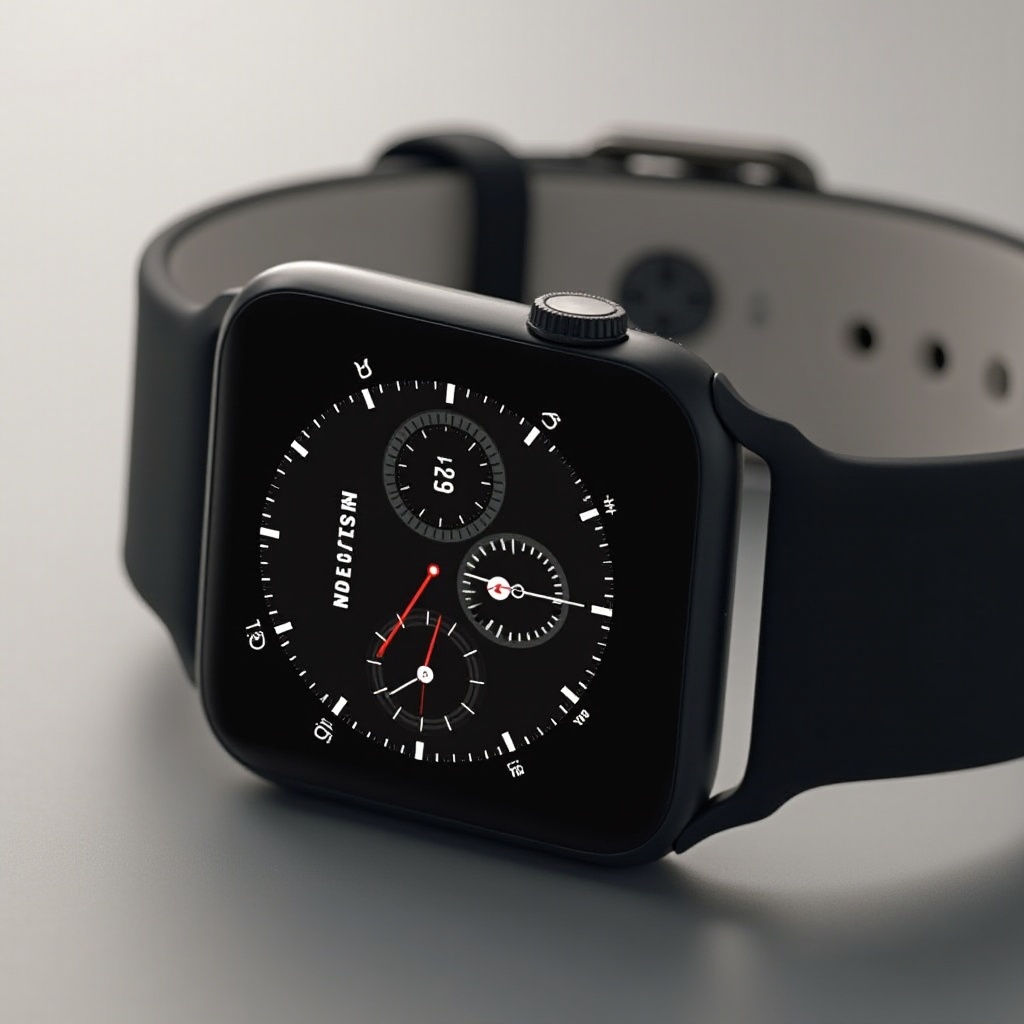
Practical Applications and Benefits
Practical applications of dual-time watch faces ensure users, from travelers to shift workers, can abstain from frequent timezone miscalculations.
For Travelers: Keeping Track of Different Time Zones
For frequent travelers, rapidly switching between time zones is a breeze. It prevents confusion over scheduled events like flights and meetings, ensuring you stay on track.
For Military Personnel: Simplifying Time Management
Military personnel need accurate communication. Military time helps streamline operations, allowing for better management of missions and shifts.
For Shift Workers: Organizing Daily Schedules
Shift workers often require precise scheduling. Embracing military time assists in managing shifts, preventing confusion or conflicts in daily plans. Concluding these insights sheds light on the main takeaway: maximizing functionality while maintaining style.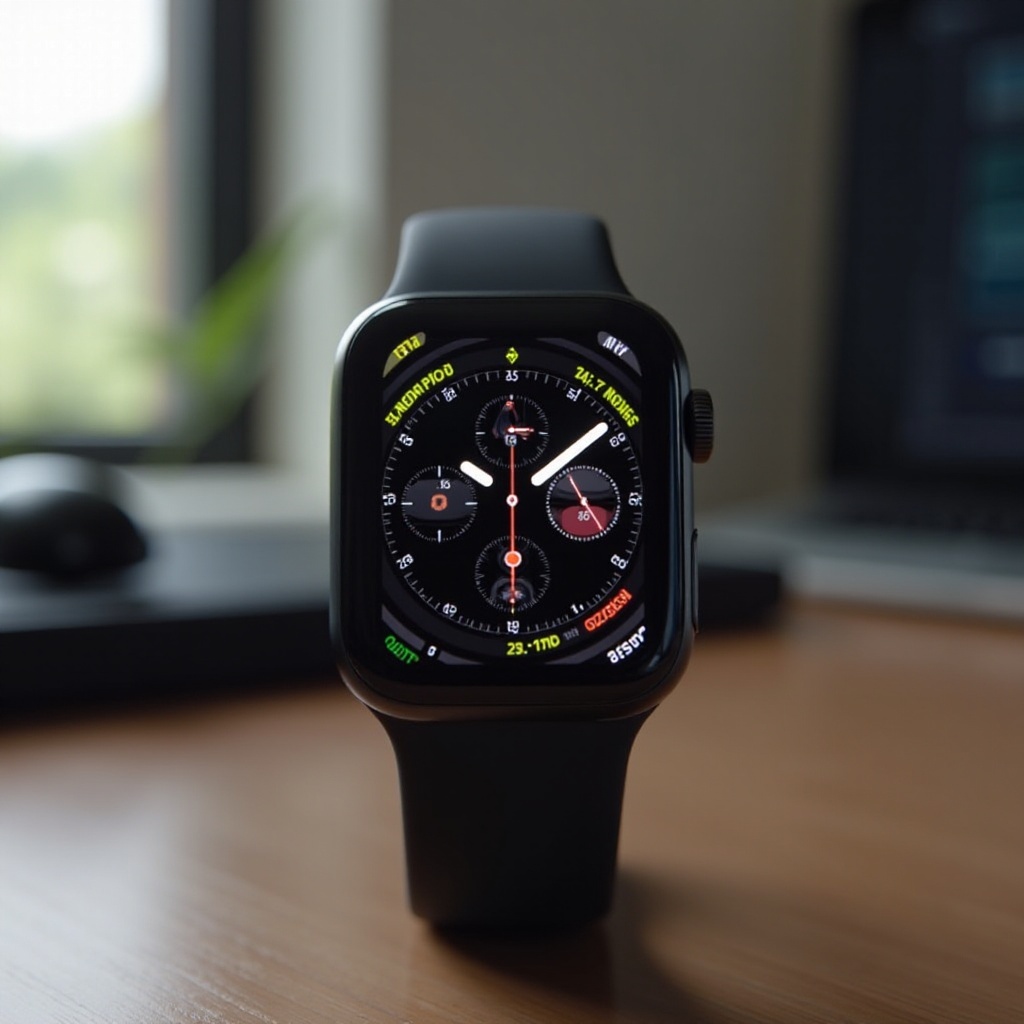
Conclusion
Customizing your Apple Watch face with military and regular time is a powerful enhancement to its functionality. By carefully choosing your watch faces and utilizing complications wisely, you ensure optimal management of your schedule, cross-time zone planning, and professional precision. Whether for personal preference or occupational necessity, configuring your Apple Watch in this manner guarantees you’re always on time and in style.
Frequently Asked Questions
Can I display both military and regular time simultaneously on my Apple Watch?
Yes, by using complications, you can display different time zones, allowing for military and regular time.
Which Apple Watch models support dual time formats?
All Apple Watch models support dual time formats, but newer models offer enhanced features and more diverse complication options.
How can I add a second time zone to my watch face?
You can use World Clock complications. Access the watch face customization options and choose complications for desired time zones.