
Introduction
Bose QuietComfort headphones are renowned for their exceptional noise cancellation and superior audio quality. To truly maximize their potential, fine-tuning the EQ settings is essential. Personalizing these settings allows for adjusting the sound profile to align with individual listening preferences, creating a deeper and more immersive audio experience. This comprehensive guide takes you through understanding and adjusting EQ settings so you can optimize your Bose QuietComfort headphones for the best possible sound.
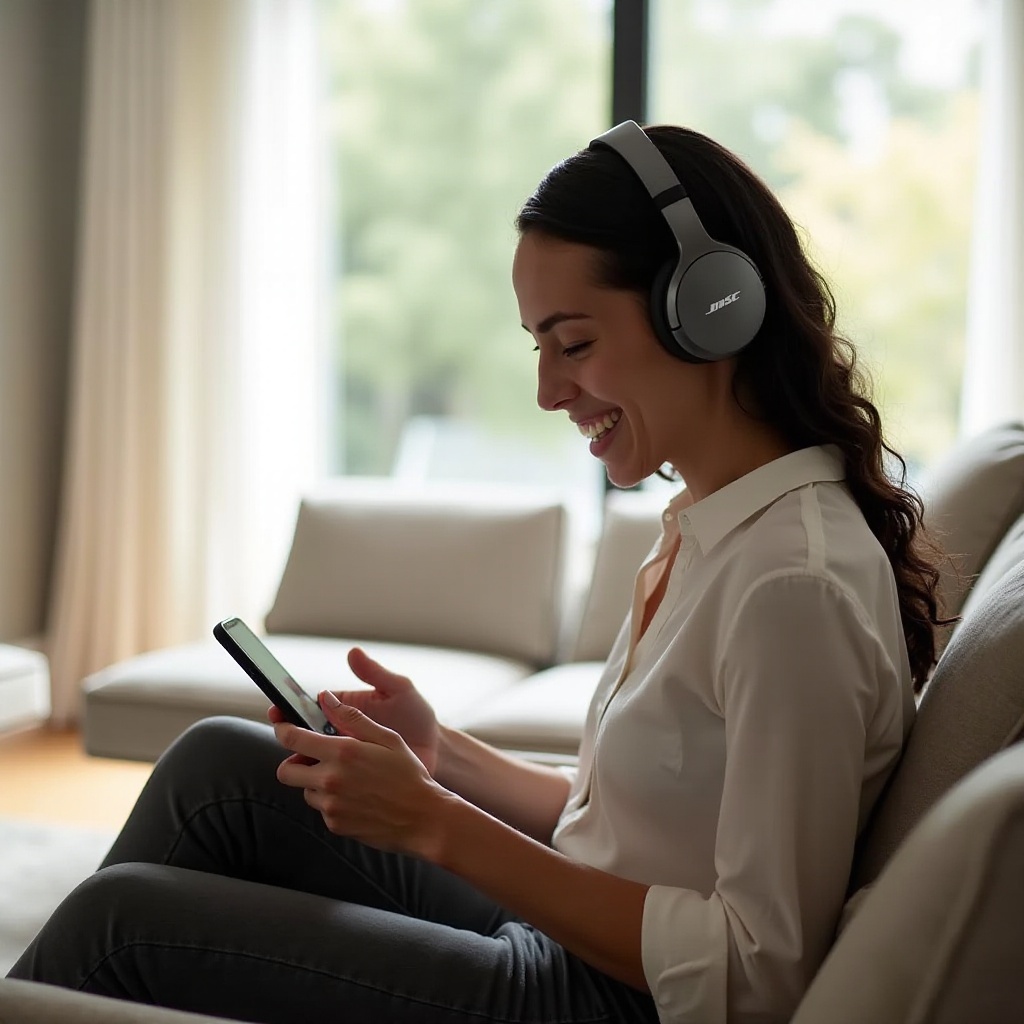
Understanding EQ and Its Importance
Equalization (EQ) plays a crucial role in shaping the audio experience by balancing various frequency components within a sound signal. With EQ, users can enhance or diminish specific frequencies, transforming the sound output. Recognizing the importance of EQ settings empowers Bose QuietComfort owners to optimize the audio response to match their tastes, whether enhancing bass for depth or adjusting treble for clarity. Properly understanding EQ allows listeners to make the most of their audio content, whether music or spoken word, tailoring it to personal desires.
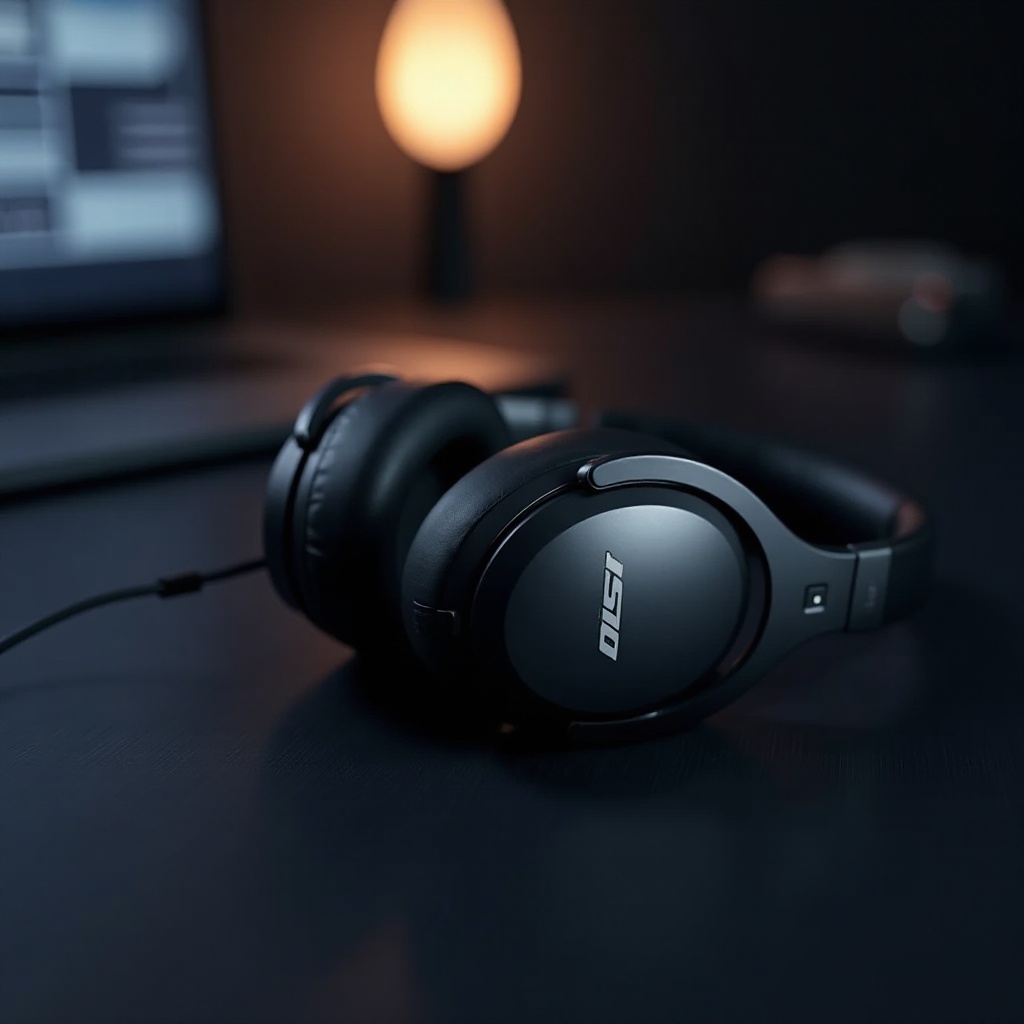
Exploring Bose QuietComfort Features
The Bose QuietComfort series stands out due to its advanced noise-cancellation technology and comfortable ergonomic design. A lesser-known but equally vital feature is the ability to customize EQ settings, ensuring the sound suits personal preferences. Understanding these features and how they interact with EQ settings is vital before diving into customization. The Bose Music app serves as an essential tool, offering a user-friendly interface for tweaking audio settings, allowing users to sculpt their ideal sound experiences.
How to Access and Adjust EQ Settings in the Bose Music App
Adjusting EQ settings in the Bose Music app is straightforward and user-friendly. Follow these steps to enhance your listening experience:
- Install and Launch the App: Ensure the Bose Music app is downloaded on your device. Open the app and connect it to your headphones.
- Navigate to Settings: Go to the ‘Settings’ section through the app’s main interface.
- Locate EQ Settings: Find the ‘Audio’ or ‘EQ’ settings tab under the settings menu.
- Choose Presets or Create Custom Settings: Select from various presets available, or manually adjust sliders to design your custom EQ profile.
- Save Your Preferences: Once satisfied with the adjustments, ensure these are saved for consistent audio personalization.
Following these steps provides a foundation for exploring detailed customization of EQ settings tailored to personal preferences.
Recommended EQ Settings for Different Musical Genres
Optimizing EQ settings to suit different music genres significantly enhances the listening experience, highlighting the best attributes of each genre. Here are tailored EQ settings for various music styles:
-
Classical and Acoustic Music: To maintain clarity and transparency, slightly boost the mid and high frequencies while slightly reducing the bass. This setup ensures that instruments like violins and acoustic guitars sound crisp and clear.
-
Rock and Pop Music: A balanced EQ setting works well, slightly enhancing bass for the rhythm section, raising the mids for vocal presence, and adjusting the highs to highlight cymbals and electric guitar riffs.
-
Bass-Heavy Tracks Like Hip-Hop: Boost the lower frequencies to emphasize bass lines while slightly enhancing the highs to ensure clarity in vocals and treble elements.
-
Podcasts and Audiobooks: Emphasize the mid-frequencies to prioritize vocal clarity, which is essential for speech-heavy content, ensuring the dialogue maintains a natural and understandable tone.
These recommendations provide a starting point, enabling experimentation to find what settings offer the most satisfying experience for your favorite music genres.
Customizing EQ to Your Personal Preferences
The true beauty of EQ customization is its adaptability to personal preferences. While general tips and genre-based settings offer a solid framework, your ears will guide the real customization process. Follow these steps to craft your unique EQ profile:
-
Identify Key Areas: Determine which parts of the sound spectrum—bass, mids, or highs—are most important to you.
-
Make Incremental Adjustments: Small, targeted changes are best to avoid drastic alterations that can affect audio quality negatively.
-
Test in Different Environments: Different environments can impact how sound is perceived, so adjust your EQ settings accordingly when moving from a quiet room to a noisy outdoor space.
Through incremental adjustments and careful testing across various environments, you ensure that your settings are genuinely tailored to your personal audio preferences.
Common EQ Mistakes and How to Avoid Them
As with any customization, pitfalls await those who are unprepared. Here are common EQ mistakes and how best to avoid them:
-
Excessive Boosting of Frequencies: Overemphasizing certain frequencies can lead to distortion. Aim for balanced adjustments that enhance without overwhelming.
-
Neglecting Room Acoustics: The space in which you listen to audio affects perception. Adjust settings based on whether you’re in a noiseless or echoing space.
-
Ignoring Personal Preferences in Favor of Expert Opinions: While expert advice offers guidance, relying solely on it can lead to underwhelming experiences. Trust your hearing to tailor sound to your liking.
Avoiding these common pitfalls ensures that audio integrity is maintained while allowing for personal sound personalization.

Conclusion
Customizing the EQ settings on your Bose QuietComfort headphones goes beyond altering sound—it’s about creating an experience tailored to your unique preferences. By understanding and applying optimal settings, you enrich your listening experience, making music more immersive and personalized. Armed with these insights and tips, you can now enjoy your favorite tracks like never before, adapting each note to fit your auditory desires.
Frequently Asked Questions
What are the best EQ settings for the Bose QuietComfort series?
The ‘best’ settings vary based on personal preference. A good start includes boosting bass for depth and adjusting mids and highs for clarity. Experiment to find what suits you.
How do I reset my EQ settings in the Bose Music app?
Navigate to ‘Settings’ in the Bose Music app, then choose ‘Audio’ and select ‘Reset EQ’ to revert to default settings, allowing a fresh start for customization.
Can EQ settings damage my Bose QuietComfort headphones?
Adjusting EQ settings won’t harm your headphones physically. However, excessive boosting can cause sound distortion, so moderation is key for optimal audio quality.