
Introduction
The ability to connect multiple devices through Phone Link has streamlined our digital lives, offering both convenience and control. However, managing these connections is crucial for maintaining your phone’s performance and security. Unused or unnecessary connections can clutter your setup, potentially leaving you vulnerable to security risks. This guide outlines why it’s essential to remove such devices and provides a step-by-step process to do so effectively.
Understanding Phone Link and Device Connections
Phone Link is a robust tool designed to unify your digital environment by linking your phone with other devices like laptops and tablets. It provides seamless integration, ensuring that your devices communicate effectively. However, too many or unauthorized connections can become a hassle, leading to security concerns and performance issues. Understanding how your devices interact through Phone Link is the first step toward efficient management.
Gaining insights into the workings of Phone Link encourages you to maintain a clean list of connected devices. Recognizing which devices are necessary for your daily tasks helps determine what should be kept or removed.
Why You Might Need to Remove Devices from Phone Link
Clearing obsolete connections offers several benefits:
-
Security Concerns: Each device connected to your phone can access personal data. Removing unwanted connections reduces unauthorized access risks.
-
Improved Performance: A streamlined device list ensures optimal Phone Link function, enhancing overall phone performance.
-
Enhanced Privacy: Restricting connections to essential devices helps protect your personal information.
Acknowledging these reasons justifies the need to learn the removal process. Simplifying your device list protects your data and boosts your device efficiency.
Step-by-Step Guide to Removing Devices from Phone Link
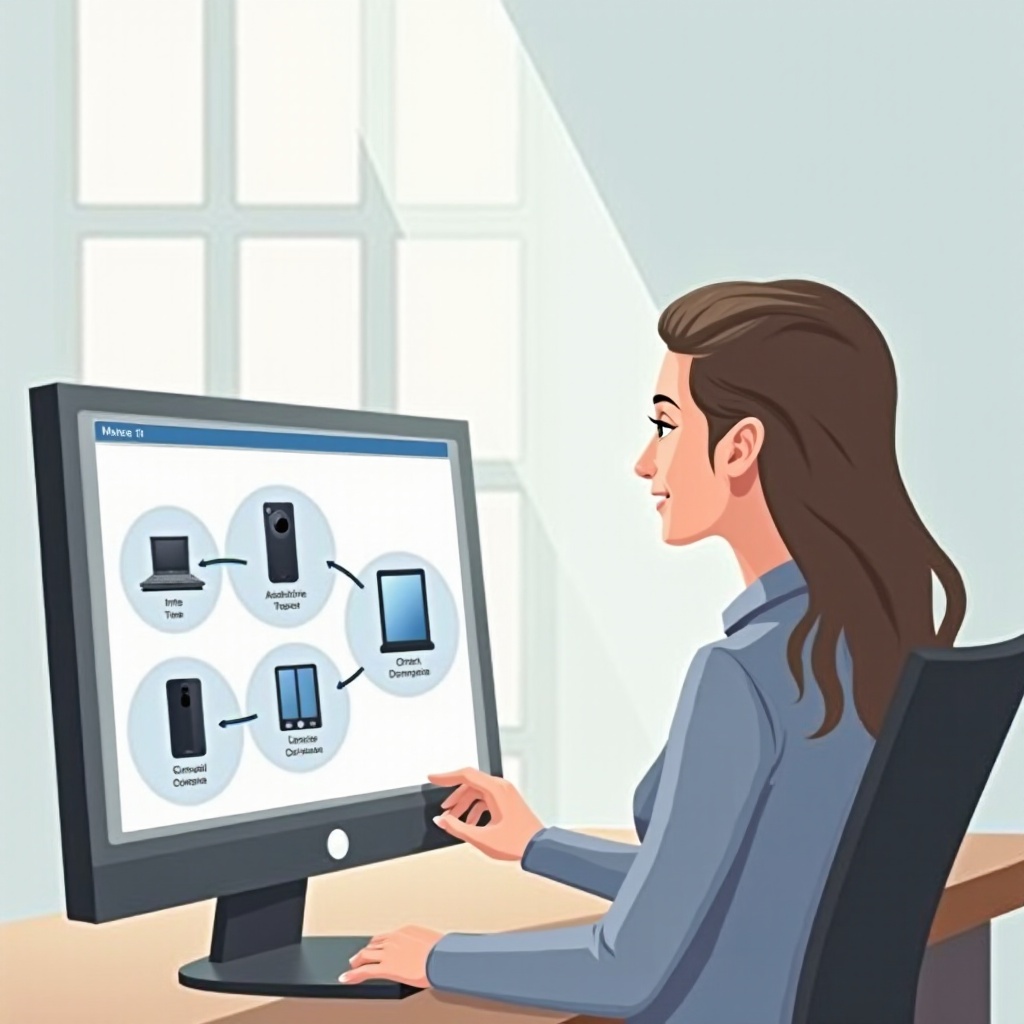
Follow these steps to efficiently remove devices:
-
Access Phone Link Settings: Navigate to the Phone Link app or your device’s settings, and locate the ‘Connected Devices’ or ‘Device Management’ option.
-
Identify Connected Devices: Examine the list for any devices you no longer use or don’t recognize.
-
Remove Devices:
- Select the unwanted device.
- Tap ‘Remove’ or ‘Disconnect’.
- Confirm the removal.
These steps ensure your device list is up-to-date, enhancing both security and performance. If issues arise, knowing how to troubleshoot them is essential.
Troubleshooting Common Issues When Removing Devices
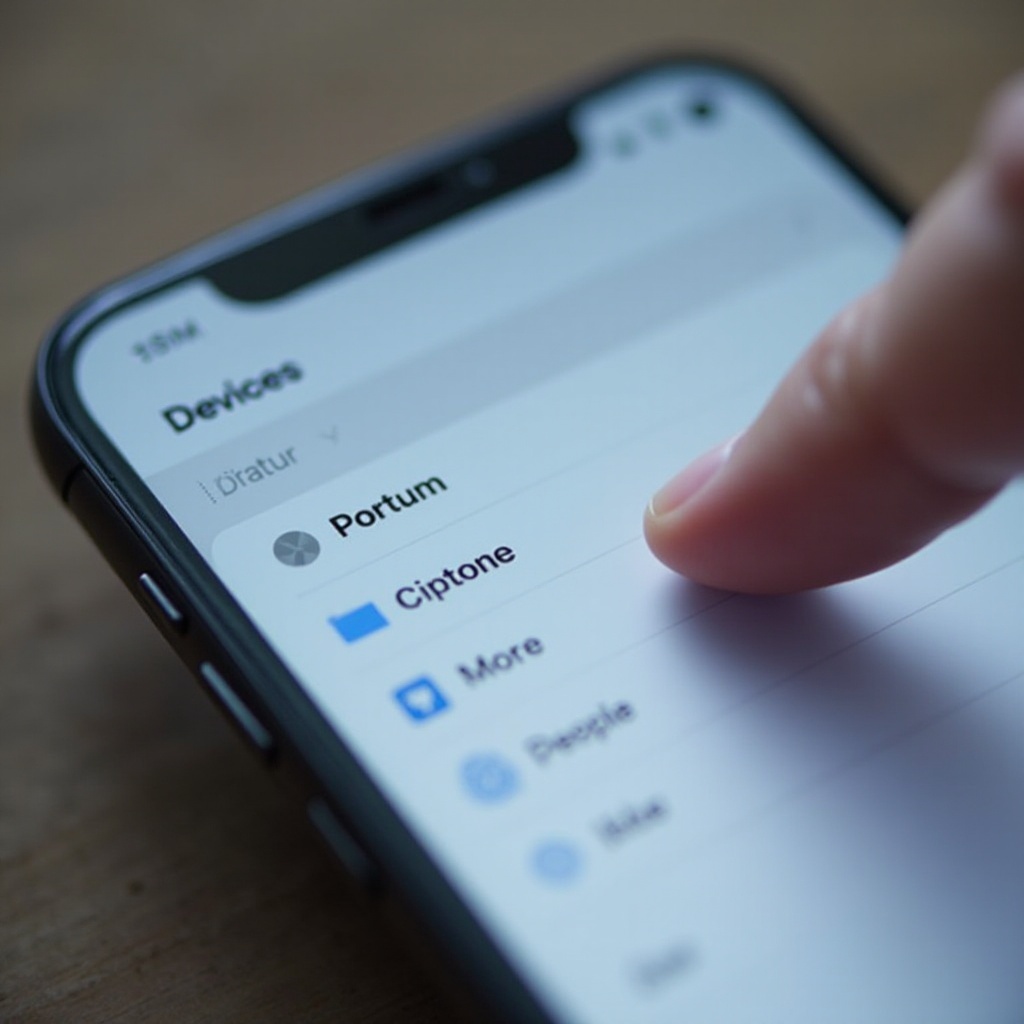
Removal isn’t always straightforward. If you face challenges, consider the following solutions:
-
Device Not Appearing: Ensure the Phone Link app is updated; refresh the device list.
-
Error Messages: Restart your phone and try removal again; check for ongoing updates or connections.
-
Replacements After Accidental Removal: Follow re-pairing instructions to reconnect a device.
Addressing these issues promptly keeps your Phone Link functioning smoothly, allowing you to enjoy a clutter-free experience. After troubleshooting, securing your phone connection is key.
Tips for Maintaining a Secure Phone Connection
Protect your phone’s integrity by implementing these strategies:
-
Regularly Review Device Connections: Schedule routine checks for connected devices and remove ones you no longer need.
-
Strengthen Security Settings: Activate two-factor authentication and biometric options to increase protection.
-
Install Security Software: Use reliable security apps to detect vulnerabilities early.
Utilizing these tips helps maintain a robust security framework, ensuring devices you wish to keep connected remain safe and functional. Let’s conclude with the importance of these tasks.
Conclusion
Regularly managing connected devices via Phone Link is vital for maintaining ideal performance and security. By understanding what Phone Link does and following straightforward steps for device removal, you safeguard your phone’s integrity. Consistent device reviews and security practices keep your digital environment secure and productive.
Frequently Asked Questions
Can I reconnect a device after removing it from Phone Link?
Yes, you can simply put the device in pairing mode and follow the on-screen prompts to reconnect it.
Will removing a device affect its data or settings?
No, removing a device only disconnects it from your phone but doesn’t alter its data or settings.
How can I ensure that my phone remains secure after device removal?
Regularly review connections, update your software, and use strong passwords and biometric verification for enhanced security.