
Introduction
Setting up your Chromecast can transform your home entertainment experience by allowing you to stream your favorite shows, movies, and music directly to your TV. However, to get the most out of this powerful device, you’ll need to make sure that your Chromecast remote is properly paired with your TV. This guide will walk you through each step of the process, ensuring a seamless pairing and helping you enjoy hassle-free streaming.
Understanding Your Chromecast Setup
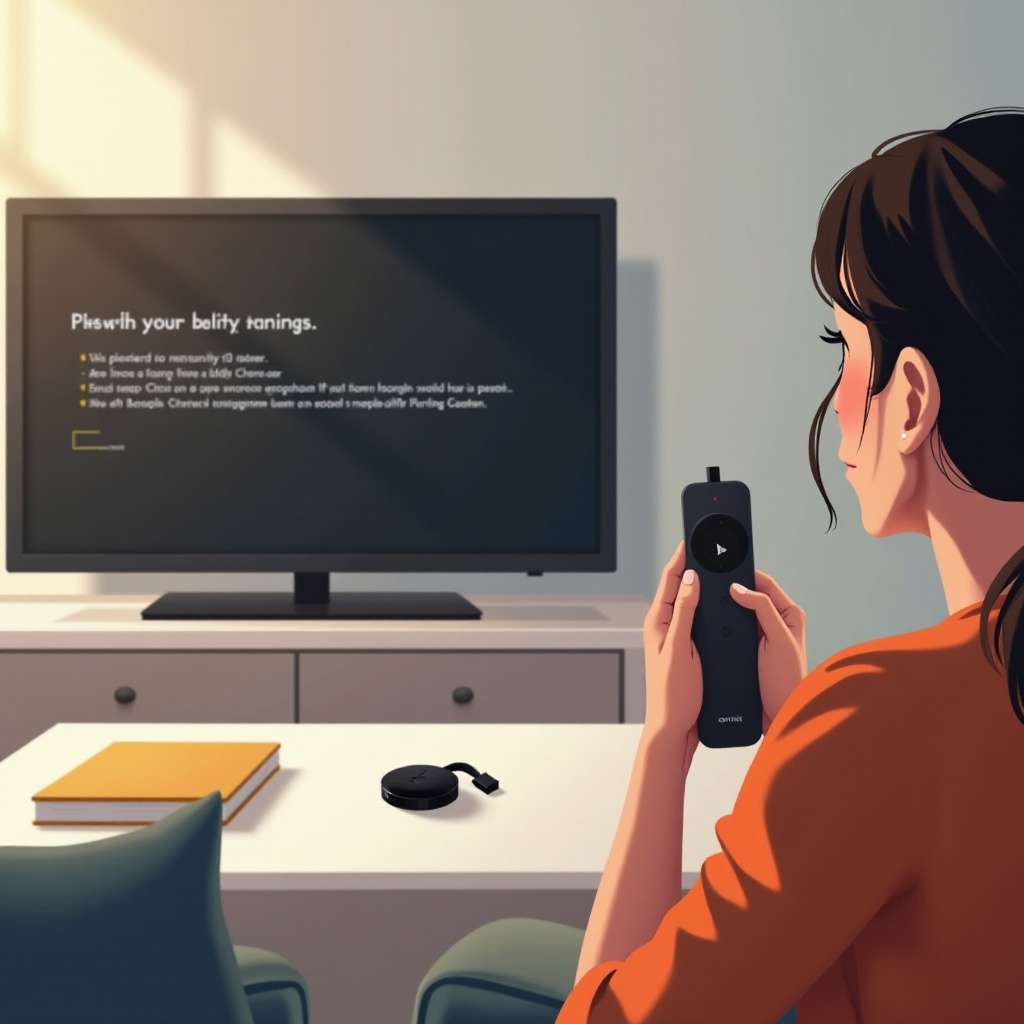
To start the pairing process, it’s crucial to familiarize yourself with the components of your Chromecast setup. Typically, your kit should include the Chromecast device, a power adapter, and a remote. Having a clear picture of these components can prevent issues during the setup process. Most modern TVs with an HDMI port are compatible with Chromecast, so ensure that you have an accessible port.
Once you’re confident about the hardware, you can proceed with the physical setup. This understanding forms the base for the next steps, which are vital for successful pairing.
Initial Setup Procedures
With an understanding of your Chromecast setup, begin by connecting the device:
1. Connect the Chromecast to an available HDMI port on your TV.
2. Use the power adapter provided to connect the Chromecast to a power source.
3. Turn on your TV and select the appropriate HDMI input source.
4. Follow the on-screen instructions to connect the Chromecast to your Wi-Fi network.
This setup ensures your Chromecast is ready to pair with the remote, allowing you to control your streaming activities easily.
Pairing Your Chromecast Remote
Once your Chromecast is connected, your next move is to pair the remote:
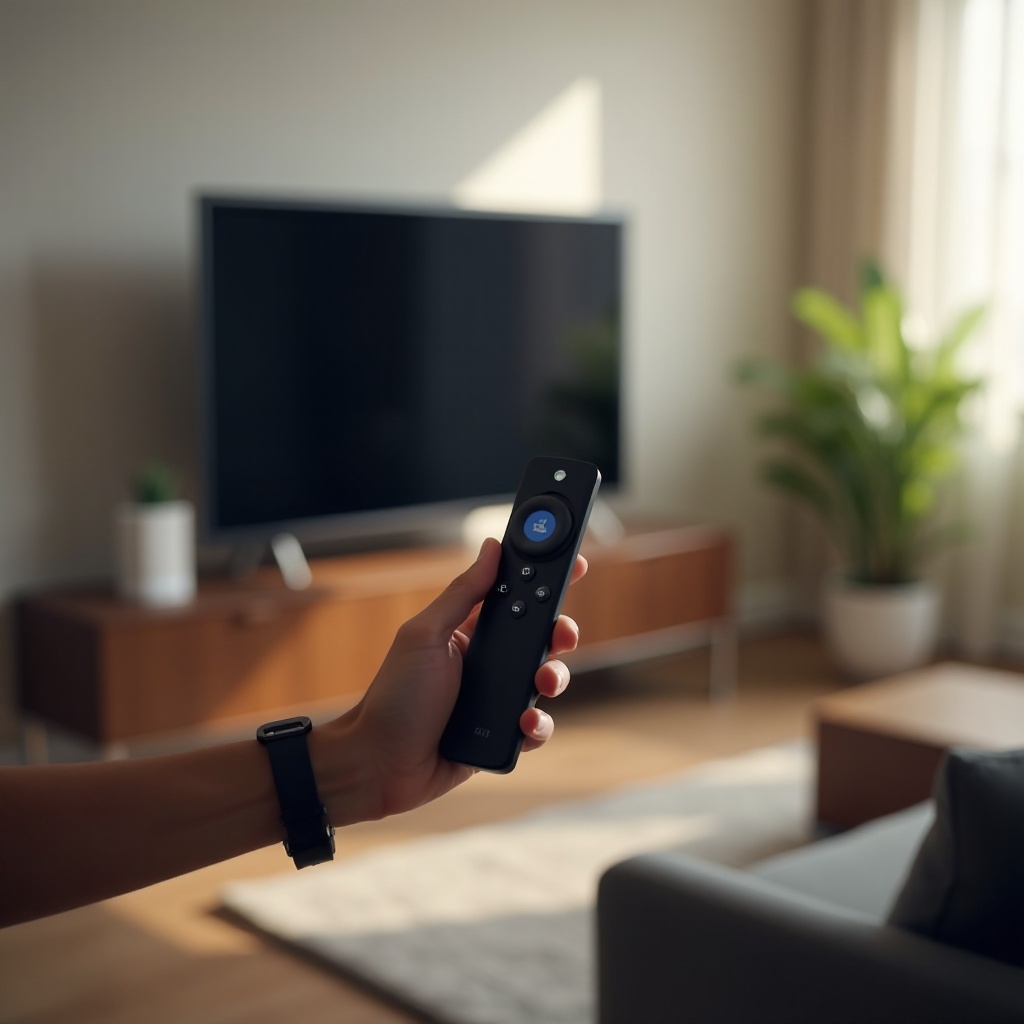
1. Automatic Pairing: This typically occurs when you first set up the device. If prompted, follow the on-screen instructions for automatic pairing.
2. Manual Pairing: If automatic pairing fails, hold the ‘Back’ and ‘Home’ buttons on the remote until the LED starts flashing, indicating that it’s ready to pair.
3. Using Google Home App: Open the app, navigate to devices, select your Chromecast, and follow the instructions to complete the pairing process.
These methods aim to provide a straightforward approach to pairing, empowering you with the convenience of using your remote without hiccups.
Troubleshooting Common Pairing Issues
Despite following the setup steps, you might encounter some issues. Here are solutions to common pairing problems:
– Remote Not Responding: Try replacing the batteries and attempt pairing again.
– Chromecast Not Detected: Ensure all connections are secure. Restart your TV and Chromecast to establish connections.
– Network Connection Problems: Confirm that your Chromecast and controlling device are connected to the same Wi-Fi network.
These troubleshooting steps can help overcome obstacles, ensuring your viewing is uninterrupted and enjoyable.
Enhancing Your Chromecast Experience
With the remote successfully paired, you can enhance your experience in various ways:
– Voice Commands: Enable Google Assistant on your Chromecast to navigate and control your TV using voice commands.
– Smart Home Integration: Easily sync your Chromecast with other smart devices in your home for a unified multimedia experience.
These enhancements mean you are not just using Chromecast to stream but integrating it into your everyday life for convenience and efficiency.
Conclusion
Pairing your Chromecast remote to your TV is a straightforward process that maximizes the device’s potential, granting you easy access to your favorite digital content. By following this guide, the setup will be seamless, transforming your TV into a smart entertainment hub.
Frequently Asked Questions
How do I reset my Chromecast remote?
To reset the Chromecast remote, remove and reinsert the batteries. If further issues persist, use the Google Home app to reset via settings.
Can I pair multiple remotes to one Chromecast?
No, typically a Chromecast supports pairing with only one remote, but you can use the Google Home app on multiple devices as a remote.
What should I do if my TV doesn’t recognize the Chromecast device?
Ensure the Chromecast is properly connected to the HDMI port and power source. Restart both the Chromecast and TV, and select the correct HDMI input.